If you’ve ever had a nosedive caused by the board cutting the motor on you, you know there’s no worse feeling than getting back on the board as you can no longer trust it. That’s why it’s important to gather as much information on the incident before engaging the board again or power-cycling it. This can help you identify the root cause and spare you more unpleasant experiences.
Note this post doesn’t address logging, which is a useful tool, but you may not always find the issue there. Some events/data are not logged and the logging typically records samples at around 10x per second, an event shorter than that may not show in there.
It’s also important to distinguish nosedives caused by motor cuts and nosedives caused by simply overpowering the motor (which is still engaged and trying to balance you, but not having enough power).
This post assumes you’re running Refloat 1.2 or later.
First thing to do after having a nosedive is connect to the board with VESC Tool. Even if you weren’t connected during the accident, you will find all the important information as long as you don’t re-engage the board or power-cycle it. Navigate to the Refloat UI (tab next to the Start tab called “AppUI” up until Refloat 1.2.1 and “Refloat” in later versions). Tap the big glowing status text in the middle of the screen saying usually “READY”, an “Alerts” dialog will pop up. This dialog shows all the possible issues the board could have had, example:
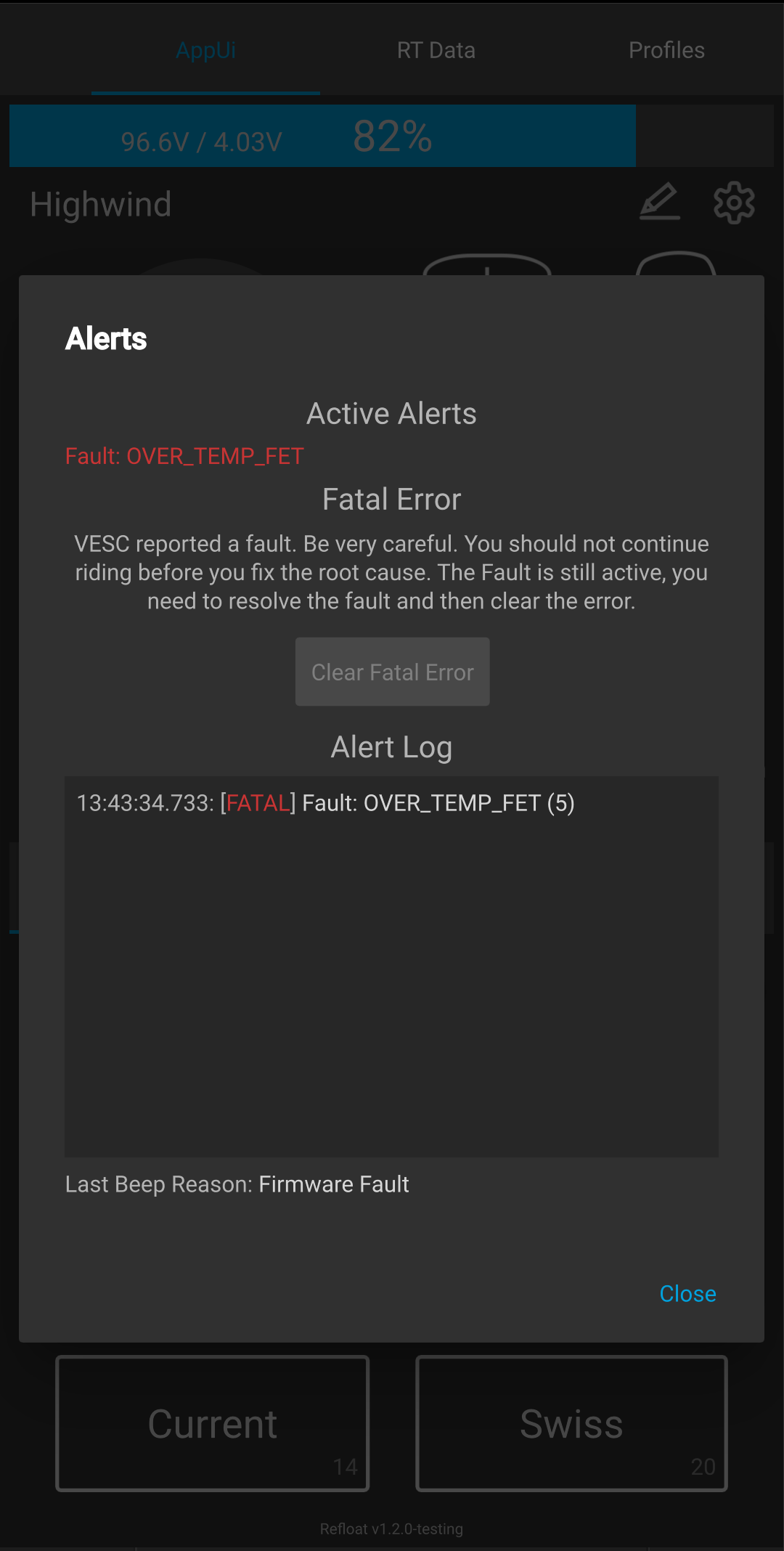
You can find firmware faults listed there, even the history of how they occurred. That’s one common cause of motor cuts (you won’t normally see a temperature fault, only in a rare case of faulty electronics). If you don’t see any firmware faults, check for the Stop Condition: text at the bottom. This gives you the reason why the package disengaged the motor. If you see Sensor Full as the reason, that indicates a faulty sensor (usually the wiring). Assuming you have a tail-heavy board (vast majority), go to Refloat Cfg → Stop tab and enable “Disable Moving Faults”. This will prevent the fault as long as you’re not riding in reverse.
If the Stop Condition line is completely missing, it indicates a fresh bootup and means your controller must have reset. To verify this, go to the “Terminal” tab in VESC Tool (last tab).
If you have stock VESC firmware, type “uptime” into the text box at the very bottom and tap “Send”. This gives you the number of seconds since the controller was started. If the time matches approximately the time of your crash, that confirms a controller reset. You can’t find out more specific information for the reset on this firmware. I recommend installing my 6.06 Refloat Extras firmware release to be able to find out more.
In the 6.06 Refloat Extras firmware there’s another terminal command to help diagnose spurious resets (the command has been submitted for inclusion in the mainline VESC firmware, but wasn’t accepted yet). Type “crash_diag” into the terminal and “Send” it. This will print a bunch of indicators, which may be hard to understand. Take a screenshot and take it to discord or pev.dev to ask for help (feel free to tag me). In the rare case of a software (firmware or package) crash, the output of this command can provide invaluable information to find the cause of the crash.
Note on Floatwheels: Floatwheels have a history of turning off on their riders. If that happens (the board is off), you know what’s up. They can also cut the power only temporarily, potentially causing a firmware fault (e.g. UNDERVOLTAGE) or a controller reset, which should show distinct values in the “crash_diag” reset indicators.