vesc tool includes functionality to diagnose hall sensor issues, it’s best to do this using the Desktop tool.
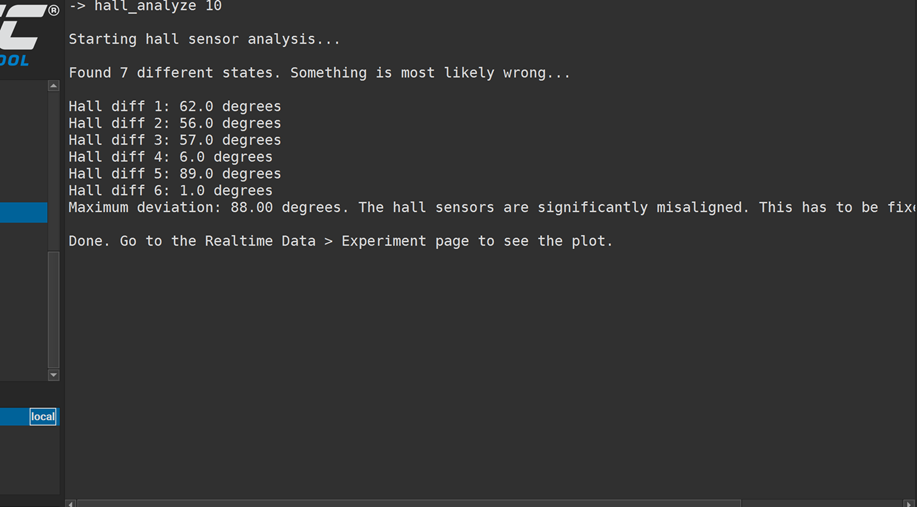
- Go to the Terminal window and type “hall_analyze 10” and hit enter
This will produce a written report, if it says your sensors are good or mostly good then you’re done.
Here’s an example result reporting “significantly misaligned” hall sensors, which warrants investigation in step (2):
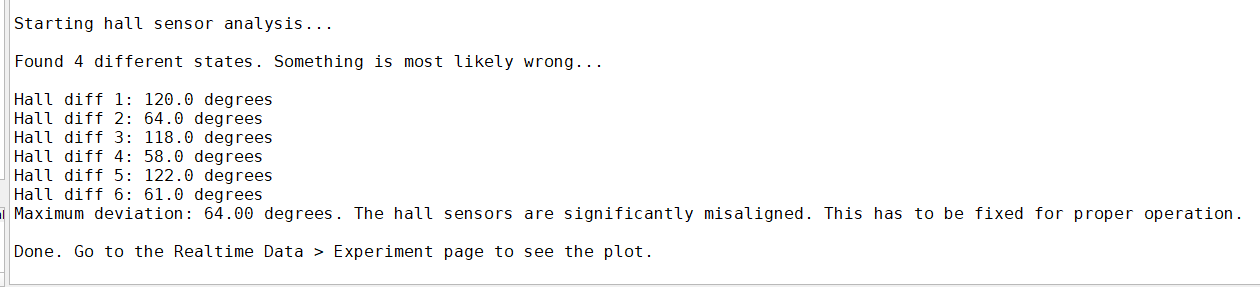
- Looking at the graph
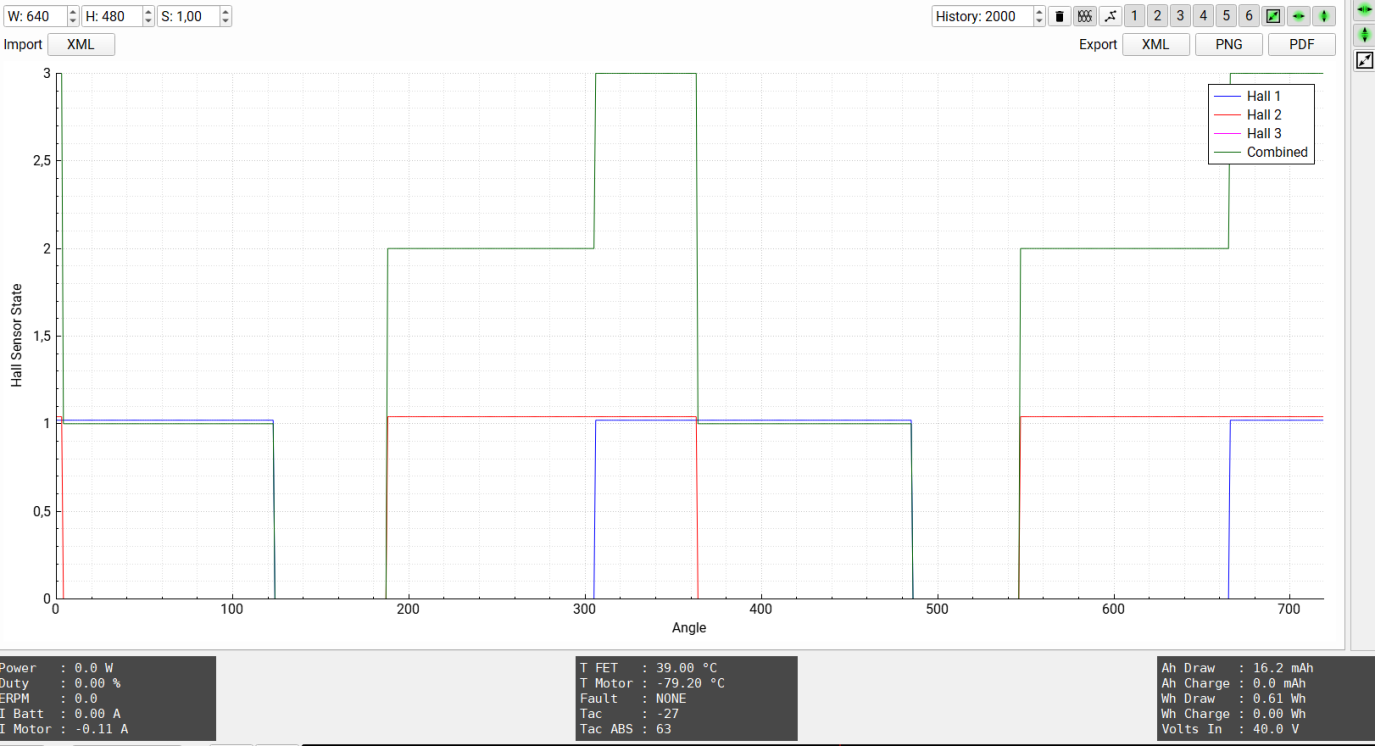
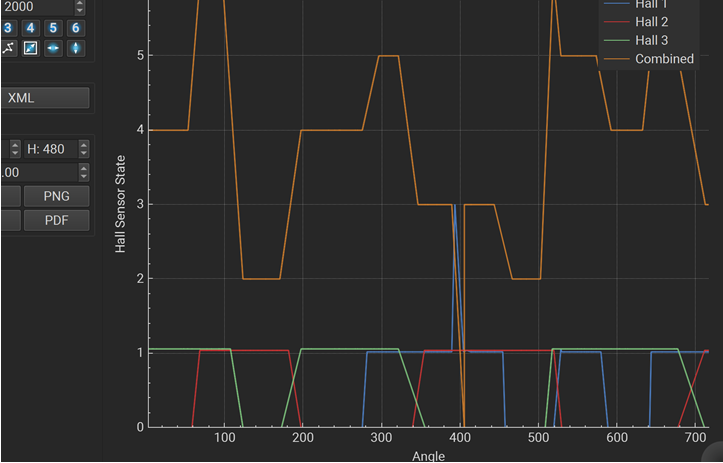
If the test above returns a bad report (e.g. “significantly misaligned”), you can view the graph in “Data Analysis”, “Realtime Data” using the “Experiments” tab. Here you will see a graph with the 3 hall sensors and the combined state. From that graph you can conclude which hall sensors behave correctly (switching between on and off states) and which ones don’t. You will see 3 colors, one each for H1, H2, and H3 - representing the 3 hall sensors. Any color that flatlines indicates a broken hall sensor (or broken hall sensor wire). Most “bad” hall sensors are usually bad connectors or bad wiring.
Example:
The graph below shows Hall 1 in blue toggling, as well as Hall 2 in red toggling, but Hall 3 (purple) isn’t visible because it’s always 0. Therefore Hall 3 is the one that needs to be investigated